
Improving setup flow
Ubiquiti Inc. is an American technology company that manufactures and sells IoT products for both enterprises and homes. During my time in UI, I led the development of a new audio product line, UniFi Play.
UX iterations
UX UI
Role and collaborations
Lead Designer, 0 to 1
Worked with hardware, firmware, & software teams in agile format
Background
When setting up sound systems, a user may adopt multiple devices at once.
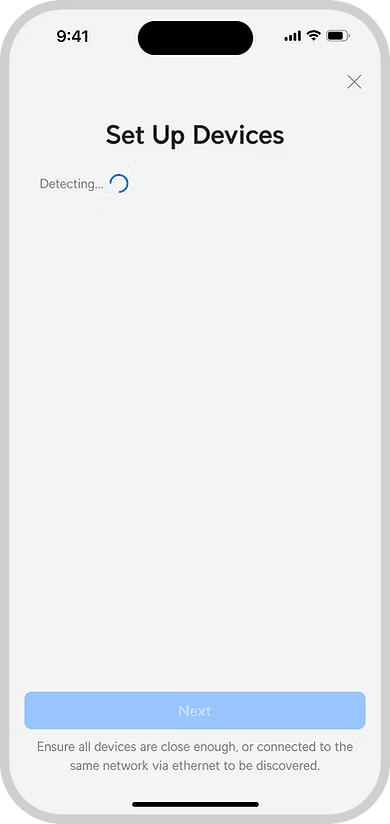
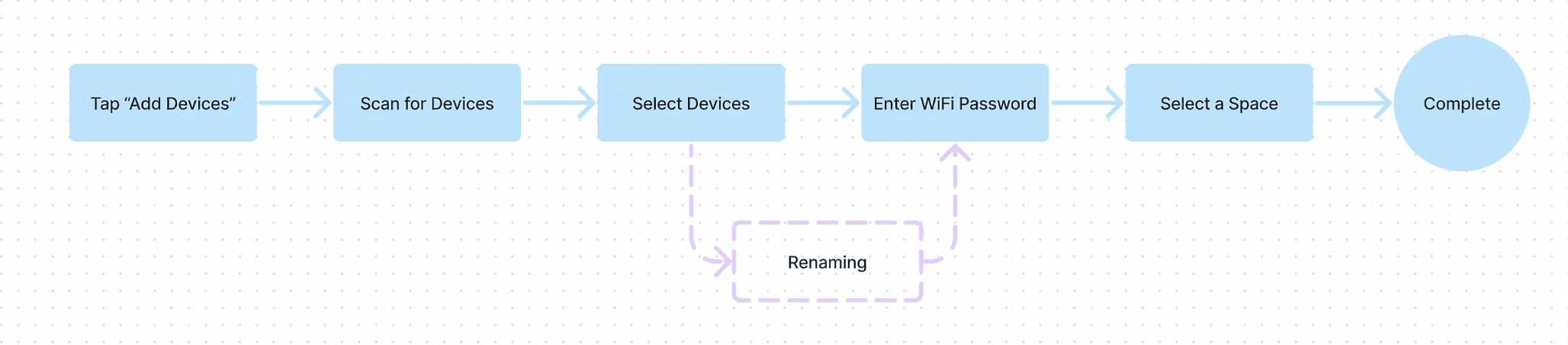
Mobile device searches for devices via bluetooth or ethernet (LAN)
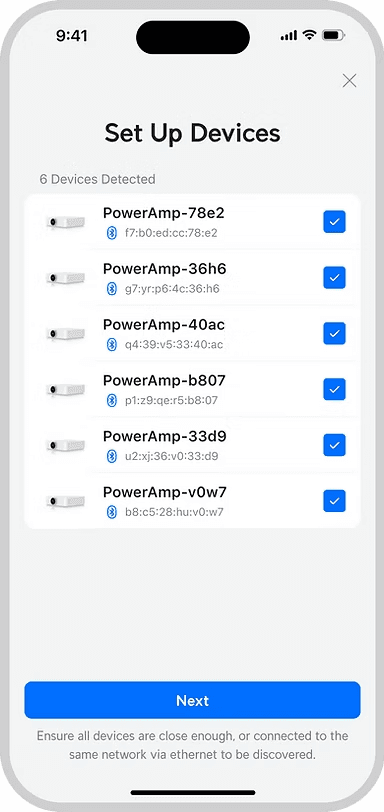
Devices nearby show up
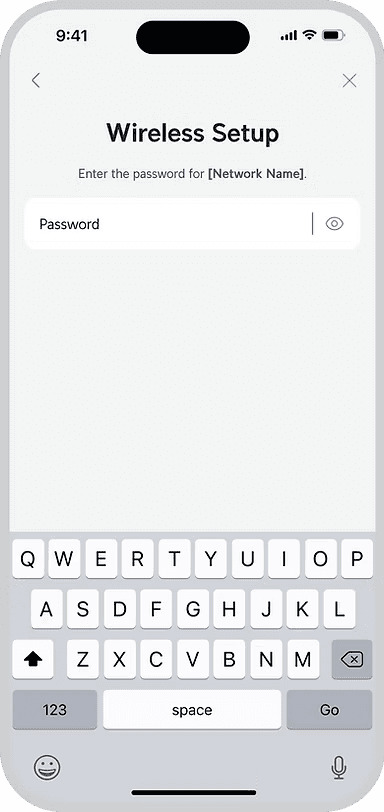
Password to connect devices to WiFi for wireless connection
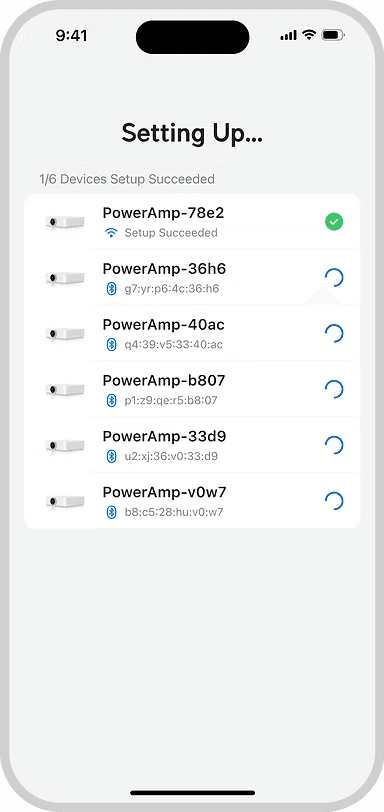
Bluetooth to WiFi bridge connection taking place
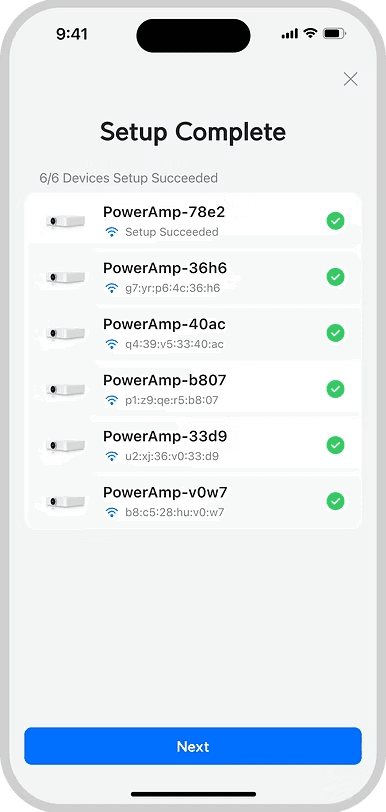
Bluetooth to WiFi bridge connection complete
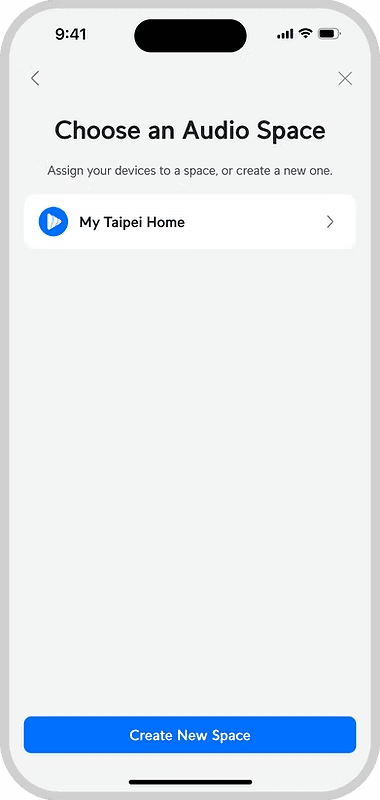
Select a "Space" to add devices into
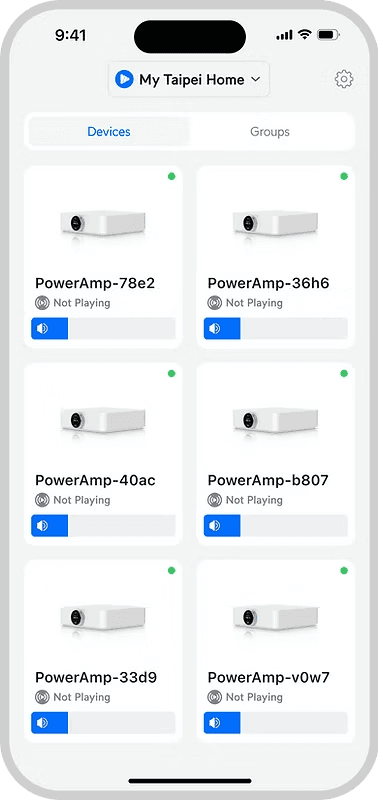
Devices are added to audio space
Pain Point:
Users have a hard time differentiating the devices by their default names
Current solution audit
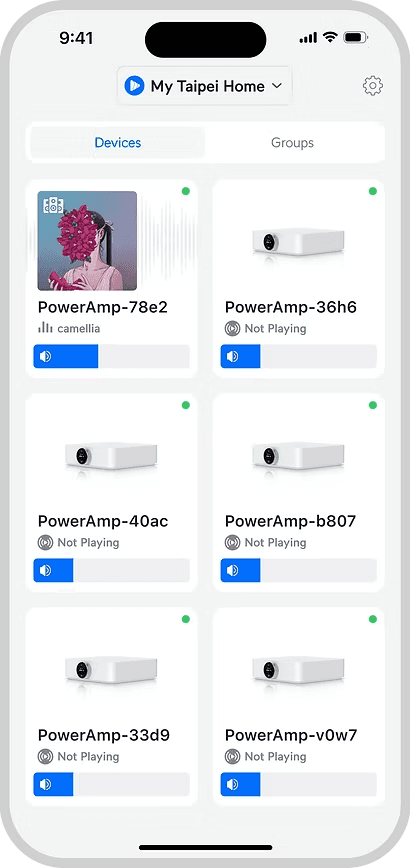
Select a device
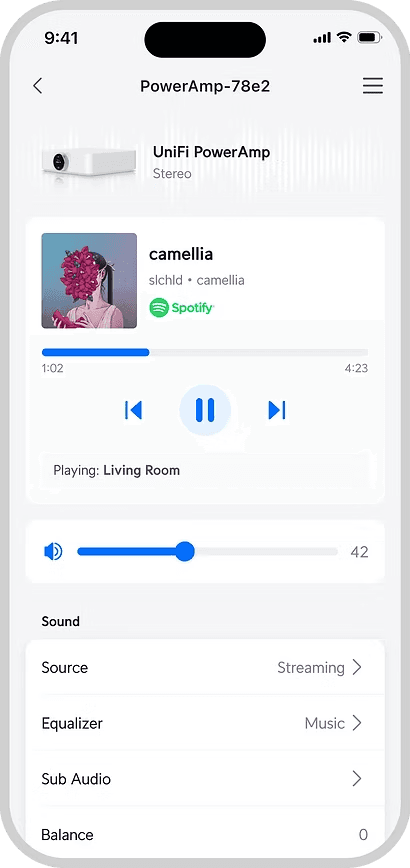
Go to device settings
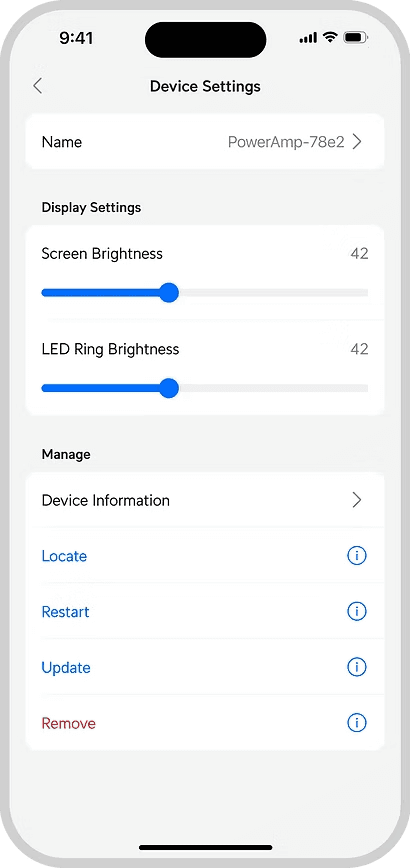
Select device name
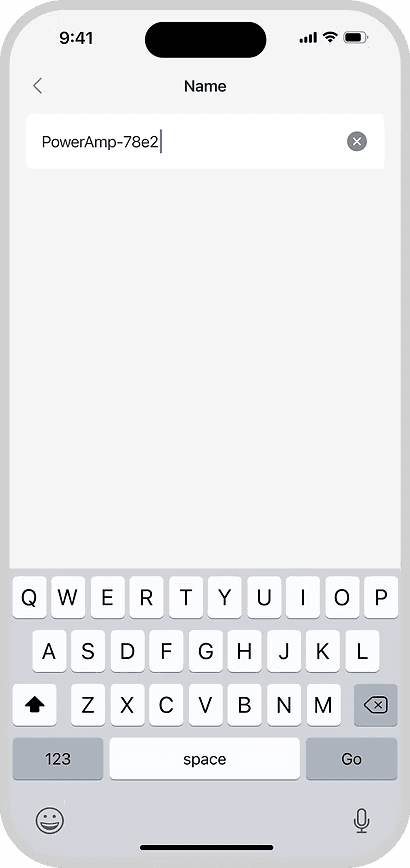
Rename device
Some necessary context
What's “PowerAmp - d9b1"?
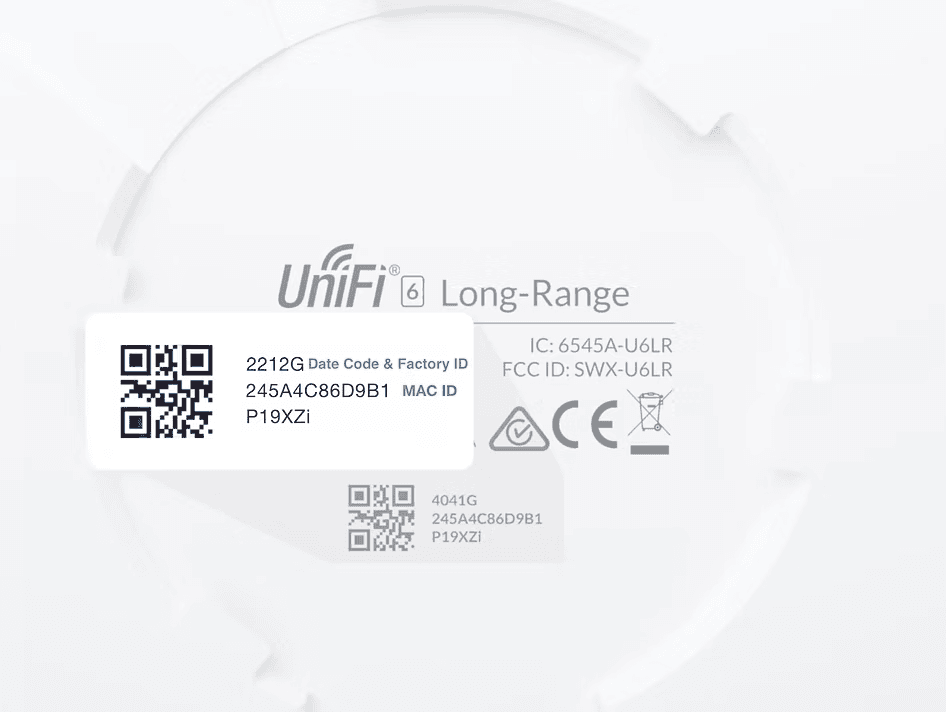
It is not advisable to change our default device naming convention (industry standard + unique identification)
Hence, renaming of devices was a necessary step in device organisation
Understand the users
How might we simplify the naming process for our users?
First, let's talk about the different types of users
User Type #1:
After purchasing 8 new amplifiers for his home, James places the respective amps he would like to set up in each room.
Then, he download the UniFi Play app and begins the set up process.
can visibly see each amplifier sitting in each room
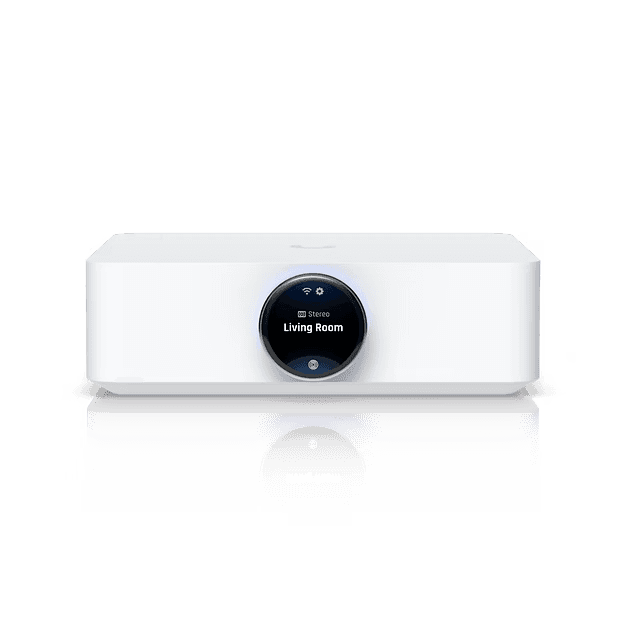
amplifiers have a screen which displays its name
needs to rename each amplifier based on the room it is placed in
User Type #2:
While building Sarah's home, amplifiers have already been secured on racks in a tech room.
Wiring from the amps to their corresponding speakers have been sealed in the walls.
When Sarah moves in, she begins setting up the amps.
all amplifiers are gathered in a separate area
not sure which amplifier is controlling the speakers of a particular room
physical display screen may not be easily visible
Tackling User Type #1
Current renaming process for James
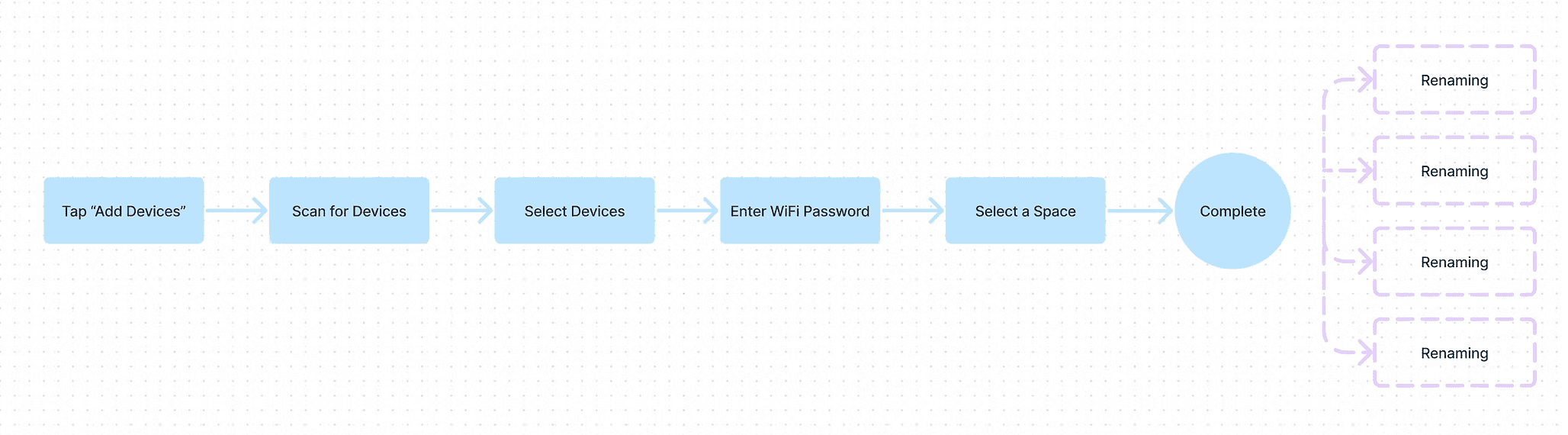
Outlining the steps James needs to take to rename his devices

Walk into a room and stand before an amplifier

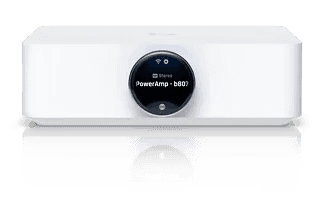
Check the name of the device via its screen
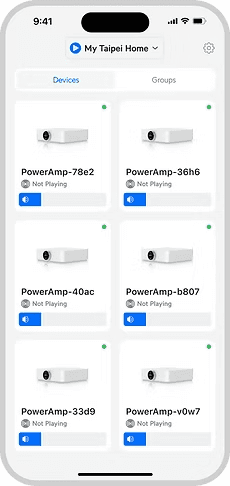
Find corresponding device on the Play app
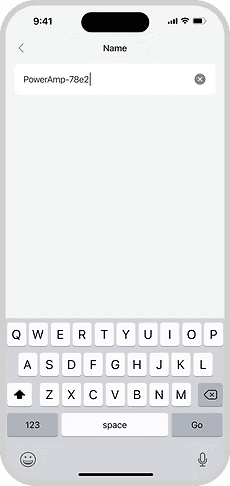
Rename device on the app & repeat process
Could we reduce repetitiveness by bringing the renaming process forward?
Solutionizing
A nifty little addition to the setup flow
Initial flow:
Addition of "Edit Device Names" button:
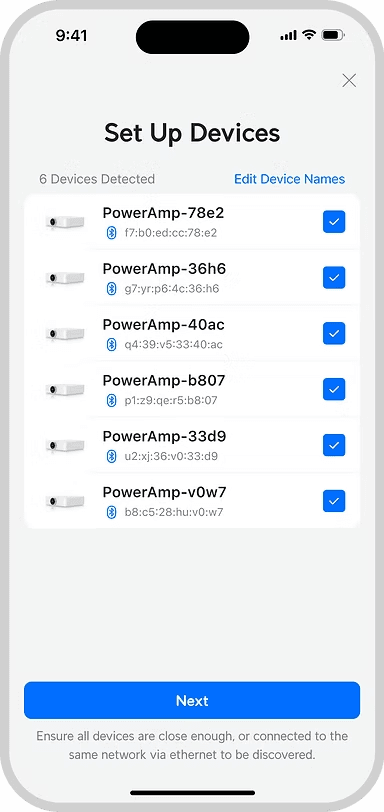
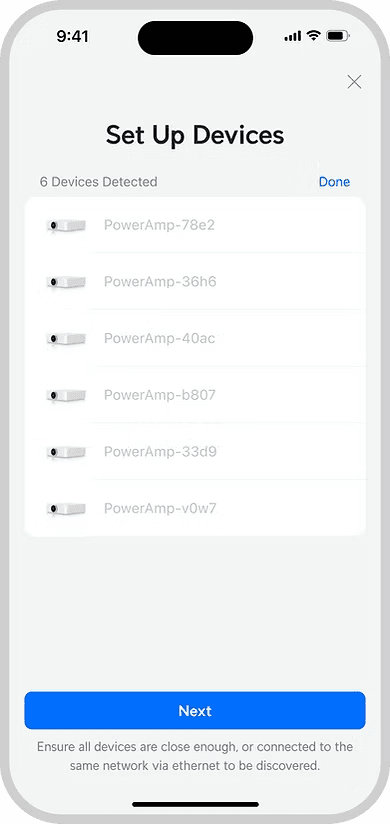
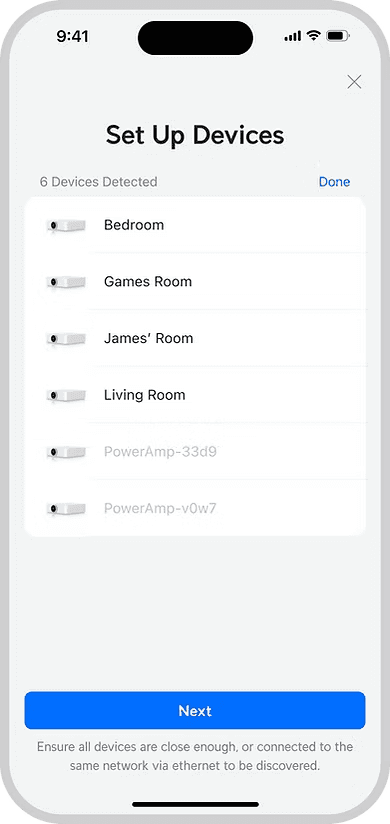
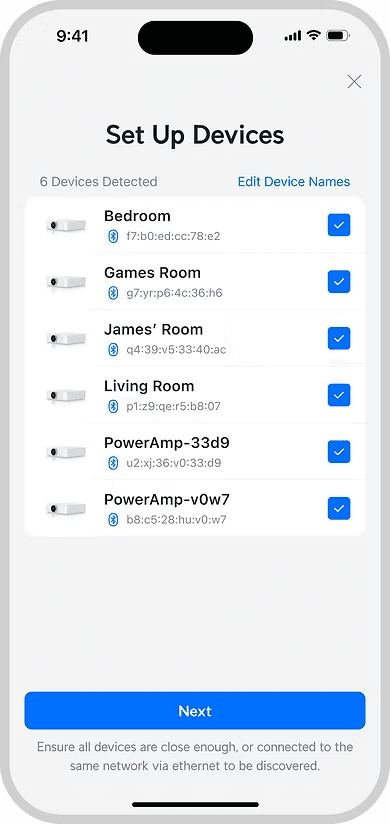
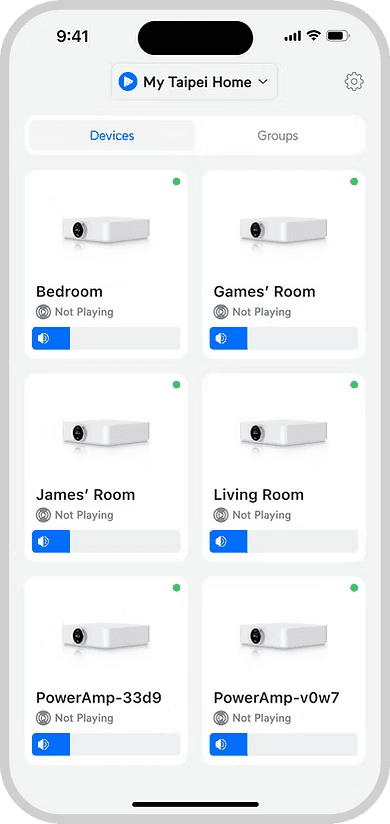
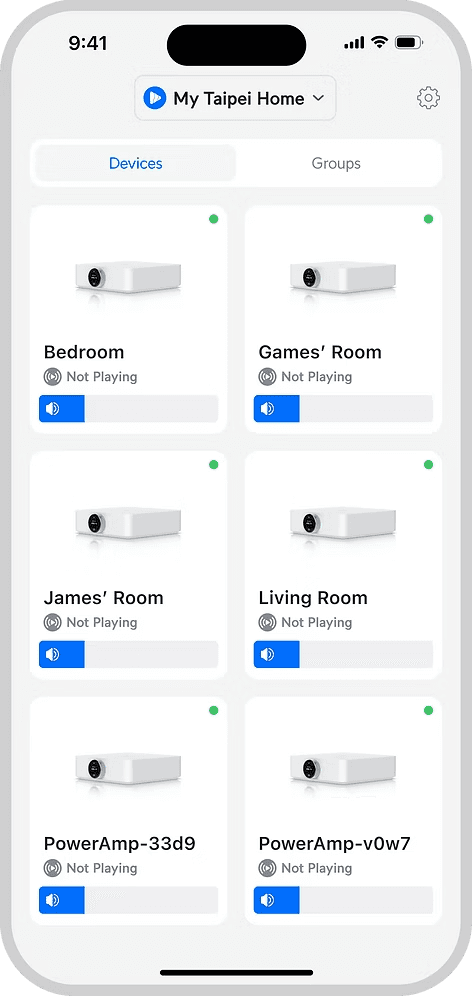
With this feature, James can easily rename all his devices at one go and identify the corresponding amplifier placed in each room.
Tackling User Type #2
In Sarah's newly renovated home…
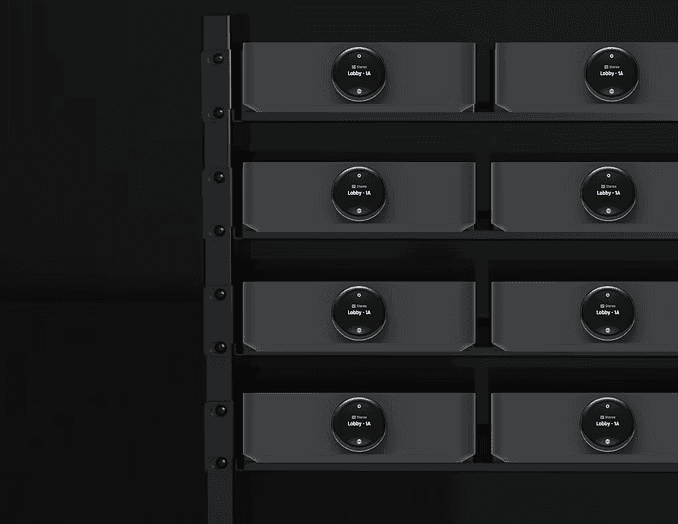
Amplifiers arranged on racks in an IT room
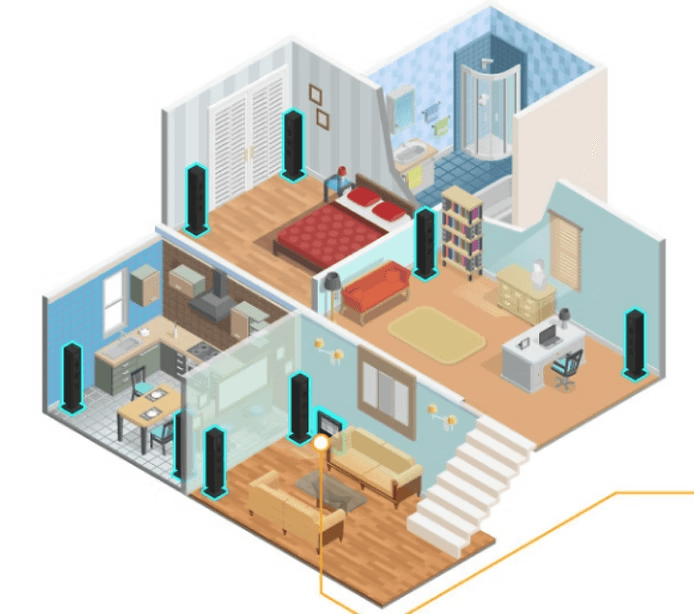
Speakers set up all over the house, wired to amps
How can Sarah identify which device plays to which speakers?
Solutionizing
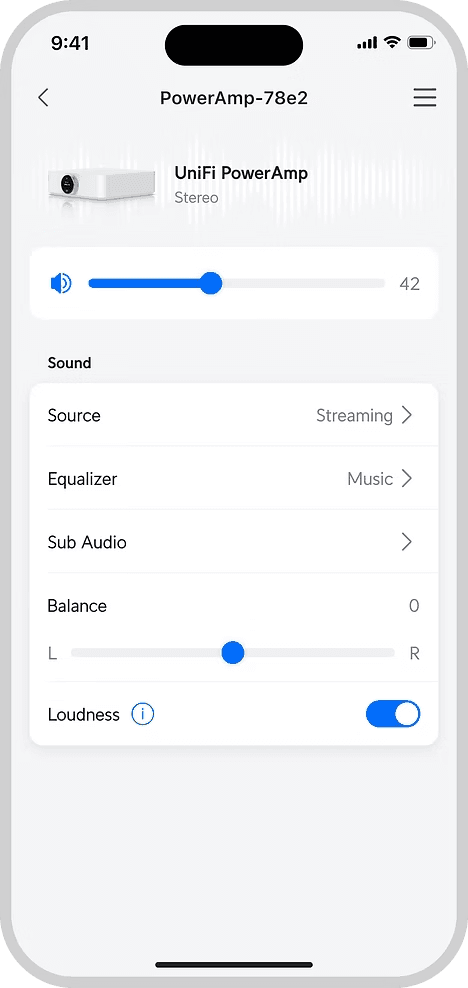
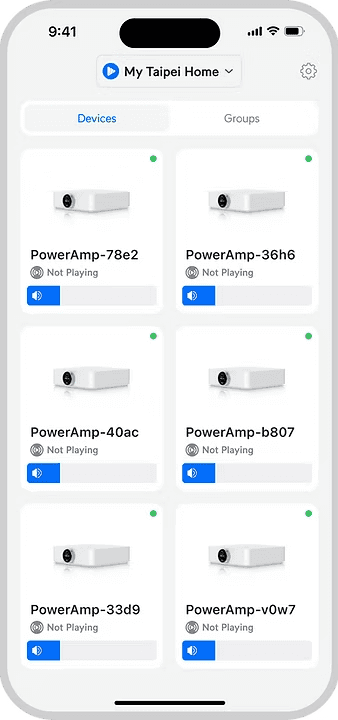
Select a device
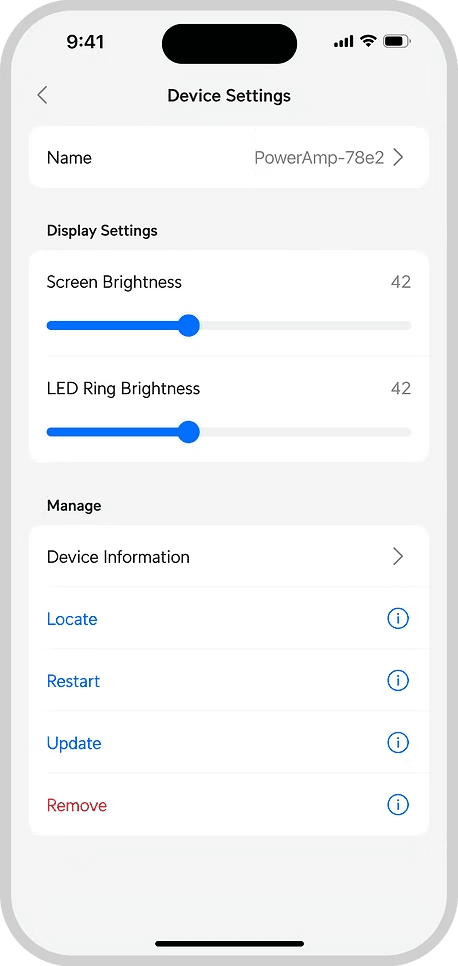
Go to device settings
Addition of "Locate"
When selected, a chime will play to the speaker.
This way, users will be able to identify where this amplifier plays to, and rename it accordingly on the same page.
The End
In an ideal world, we can bucket users into specific categories like James and Sarah.
However, this is often not the case especially for hardware products where you have to take into consideration both the user's digital and physical experience.
This product was particularly interesting due to the endless physical experience a user could go through, as well as its usage of visual and audio stimulus. Not only so, there was a need to design for the interaction between the mobile app's screen and physical device screen.
As a designer, it was definitely a unique challenge to approach a product from multiple perspectives!
More Works
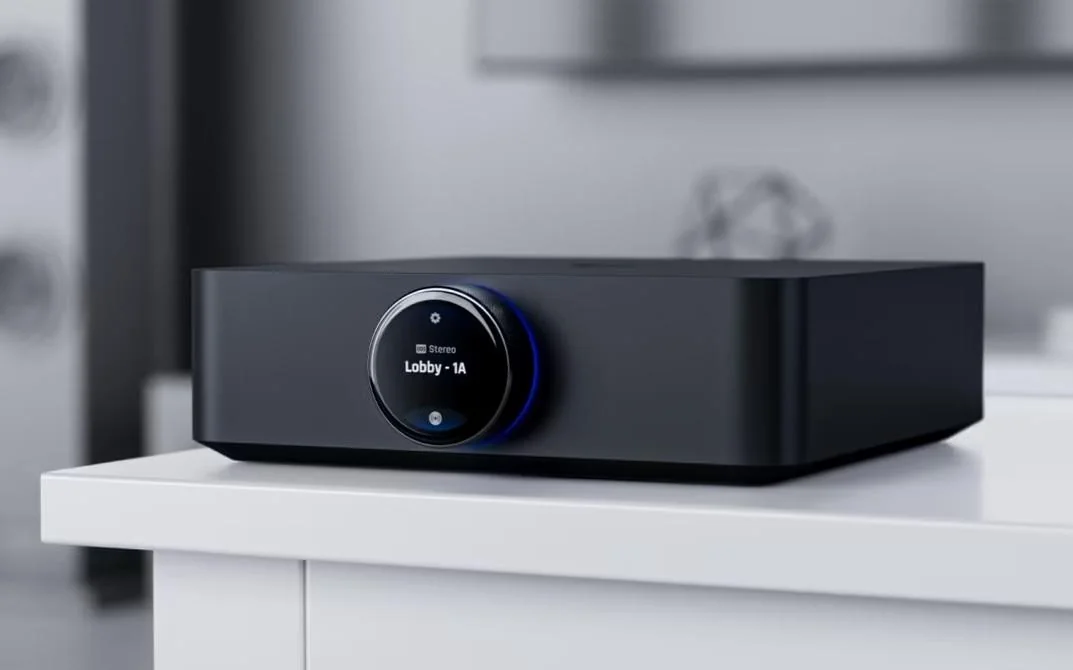
Designing an amplifier
2023 - 2024
End-to-end design
Product
Designing an amplifier
2023 - 2024
End-to-end design
Product
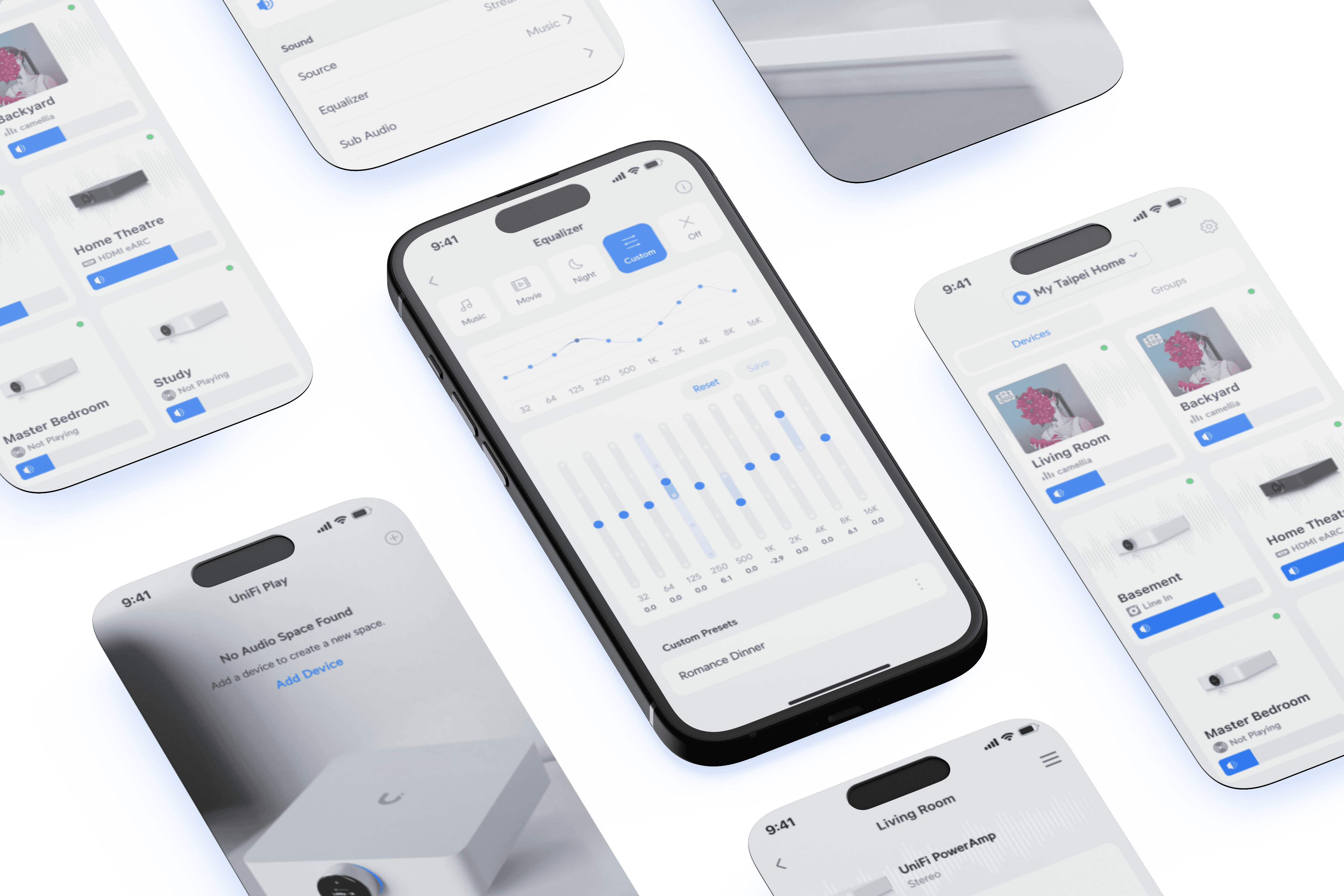
Professional audio made accessible
2024
UX UI
Phygital design
Professional audio made accessible
2024
UX UI
Phygital design
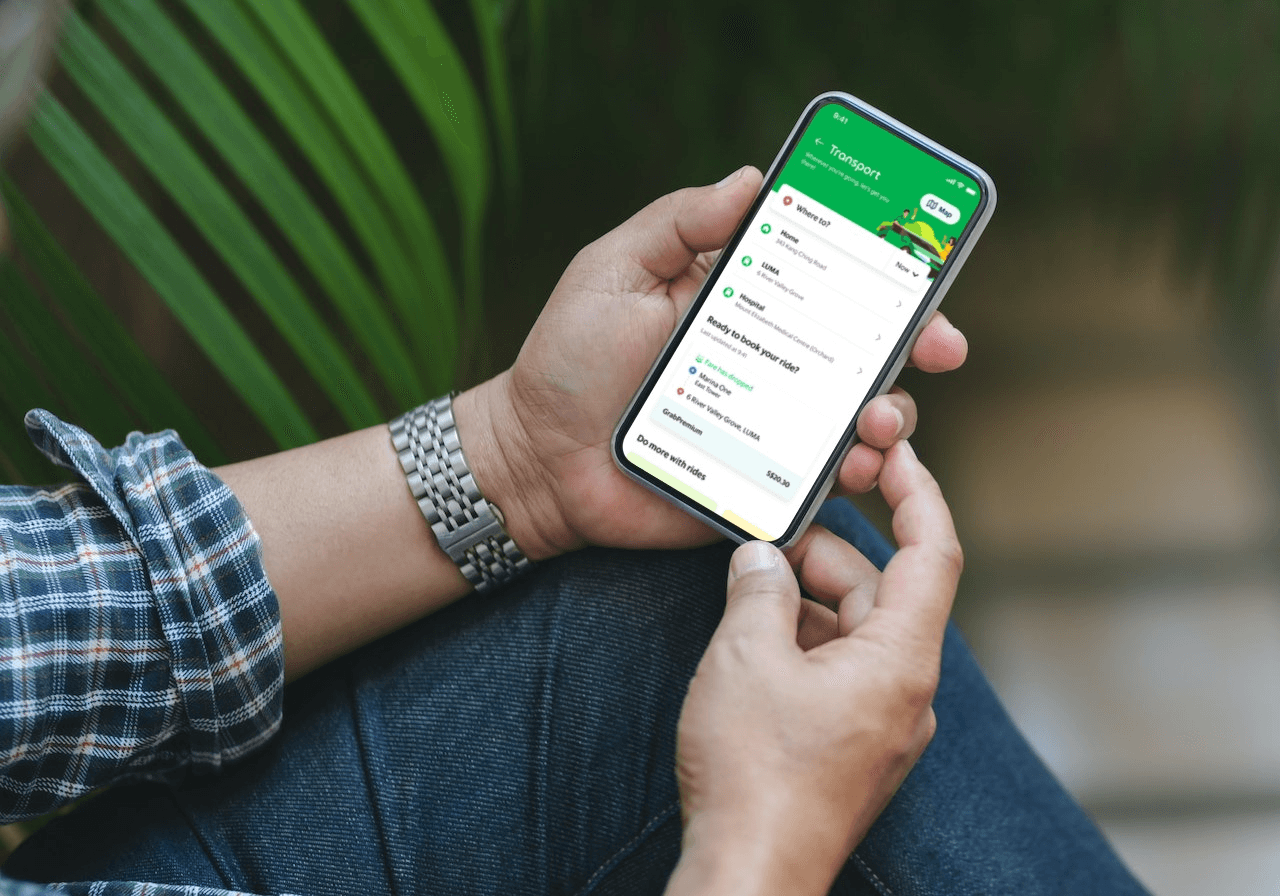
Tackling abandoned carts in ride hailing
2021
UX UI
User testing
Tackling abandoned carts in ride hailing
2021
UX UI
User testing
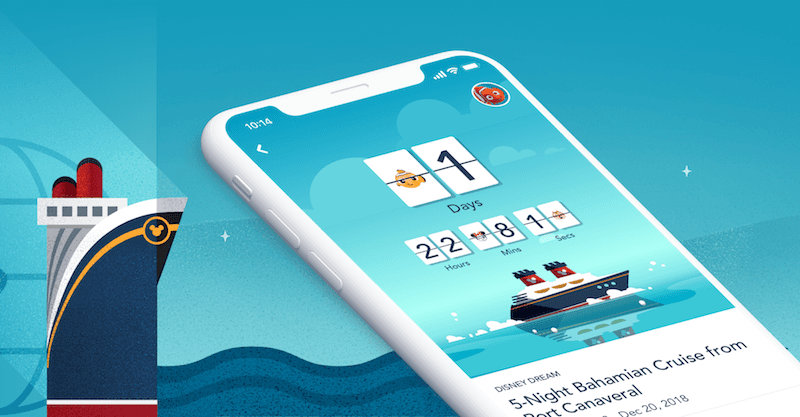
Shaping Disney’s digital experience in Asia
2025
UX UI
UX iterations
Improving setup flow
Ubiquiti Inc. is an American technology company that manufactures and sells IoT products for both enterprises and homes. During my time in UI, I led the development of a new audio product line, UniFi Play.
UX iterations
UX UI
Role and collaborations
Lead Designer, 0 to 1
Worked with hardware, firmware, & software teams in agile format
Background
When setting up sound systems, a user may adopt multiple devices at once.
Mobile device searches for devices via bluetooth or ethernet (LAN)
Devices nearby show up
Password to connect devices to WiFi for wireless connection
Bluetooth to WiFi bridge connection taking place
Bluetooth to WiFi connection complete
Select a "Space" to add devices into
Devices are added to audio space
Pain Point:
Users have a hard time differentiating the devices by their default names
Current solution audit
Select a device
Go to device settings
Select device name
Rename device
Some necessary context
What's “PowerAmp - d9b1"?
It is not advisable to change our default device naming convention (industry standard + unique identification)
Hence, renaming of devices was a necessary step in device organisation
Understand the users
How might we simplify the naming process for our users?
First, let's talk about the different types of users
User Type #1:
After purchasing 8 new amplifiers for his home, James places the respective amps he would like to set up in each room.
Then, he download the UniFi Play app and begins the set up process.
can visibly see each amplifier sitting in each room
amplifiers have a screen which displays its name
needs to rename each amplifier based on the room it is placed in
User Type #2:
While building Sarah's home, amplifiers have already been secured on racks in a tech room.
Wiring from the amps to their corresponding speakers have been sealed in the walls.
When Sarah moves in, she begins setting up the amps.
all amplifiers are gathered in a separate area
not sure which amplifier is controlling the speakers of a particular room
physical display screen may not be easily visible
Tackling User Type #1
Current renaming process for James
Outlining the steps James needs to take to rename his devices
Walk into a room and stand before an amplifier
Check the name of the device via its screen
Find corresponding device on the Play app
Rename device on the app & repeat process
Could we reduce repetitiveness by bringing the renaming process forward?
Solutionizing
A nifty little addition to the setup flow
Initial flow:
Addition of "Edit Device Names" button:
With this feature, James can easily rename all his devices at one go and identify the corresponding amplifier placed in each room.
Tackling User Type #2
In Sarah's newly renovated home…
Amplifiers arranged on racks in an IT room
Speakers set up all over the house, wired to amps
How can Sarah identify which device plays to which speakers?
Solutionizing
Select a device
Go to device settings
Addition of "Locate"
When selected, a chime will play to the speaker.
This way, users will be able to identify where this amplifier plays to, and rename it accordingly on the same page.
The End
In an ideal world, we can bucket users into specific categories like James and Sarah.
However, this is often not the case especially for hardware products where you have to take into consideration both the user's digital and physical experience.
This product was particularly interesting due to the endless physical experience a user could go through, as well as its usage of visual and audio stimulus. Not only so, there was a need to design for the interaction between the mobile app's screen and physical device screen.
As a designer, it was definitely a unique challenge to approach a product from multiple perspectives!
More Works
Improving setup flow
Ubiquiti Inc. is an American technology company that manufactures and sells IoT products for both enterprises and homes. During my time in UI, I led the development of a new audio product line, UniFi Play.
UX iterations
UX UI
Role and collaborations
Lead Designer, 0 to 1
Worked with hardware, firmware, & software teams in agile format
Background
When setting up sound systems, a user may adopt multiple devices at once.
Mobile device searches for devices via bluetooth or ethernet (LAN)
Devices nearby show up
Password to connect devices to WiFi for wireless connection
Bluetooth to WiFi bridge connection taking place
Bluetooth to WiFi bridge connection complete
Select a "Space" to add devices into
Devices are added to audio space
Pain Point:
Users have a hard time differentiating the devices by their default names
Current solution audit
Select a device
Go to device settings
Select device name
Rename device
Some necessary context
What's “PowerAmp - d9b1"?
It is not advisable to change our default device naming convention (industry standard + unique identification)
Hence, renaming of devices was a necessary step in device organisation
Understand the users
How might we simplify the naming process for our users?
First, let's talk about the different types of users
User Type #1:
After purchasing 8 new amplifiers for his home, James places the respective amps he would like to set up in each room.
Then, he download the UniFi Play app and begins the set up process.
can visibly see each amplifier sitting in each room
amplifiers have a screen which displays its name
needs to rename each amplifier based on the room it is placed in
User Type #2:
While building Sarah's home, amplifiers have already been secured on racks in a tech room.
Wiring from the amps to their corresponding speakers have been sealed in the walls.
When Sarah moves in, she begins setting up the amps.
all amplifiers are gathered in a separate area
not sure which amplifier is controlling the speakers of a particular room
physical display screen may not be easily visible
Tackling User Type #1
Current renaming process for James
Outlining the steps James needs to take to rename his devices
Walk into a room and stand before an amplifier
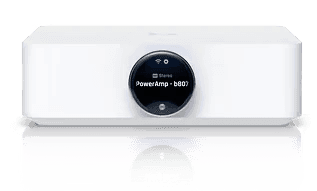
Check the name of the device via its screen
Find corresponding device on the Play app
Rename device on the app & repeat process
Could we reduce repetitiveness by bringing the renaming process forward?
Solutionizing
A nifty little addition to the setup flow
Initial flow:
Addition of "Edit Device Names" button:
With this feature, James can easily rename all his devices at one go and identify the corresponding amplifier placed in each room.
Tackling User Type #2
In Sarah's newly renovated home…
Amplifiers arranged on racks in an IT room
Speakers set up all over the house, wired to amps
How can Sarah identify which device plays to which speakers?
Solutionizing
Select a device
Go to device settings
Addition of "Locate"
When selected, a chime will play to the speaker.
This way, users will be able to identify where this amplifier plays to, and rename it accordingly on the same page.
The End
In an ideal world, we can bucket users into specific categories like James and Sarah.
However, this is often not the case especially for hardware products where you have to take into consideration both the user's digital and physical experience.
This product was particularly interesting due to the endless physical experience a user could go through, as well as its usage of visual and audio stimulus. Not only so, there was a need to design for the interaction between the mobile app's screen and physical device screen.
As a designer, it was definitely a unique challenge to approach a product from multiple perspectives!
More Works